

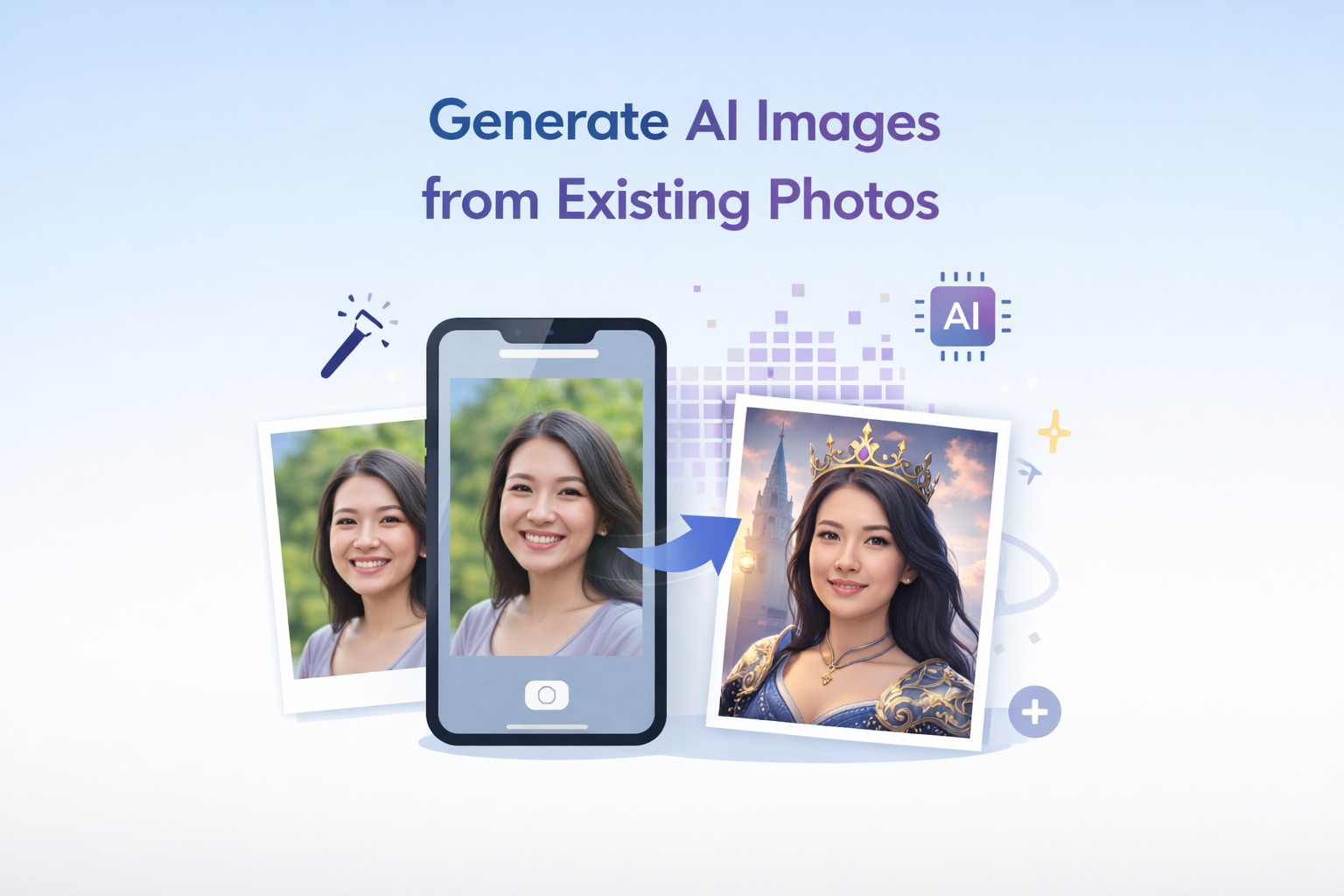
You have a photo, maybe a product shot, a portrait, or a random selfie, and you want to turn it into something more. Something creative, polished, or entirely reimagined. That’s exactly what modern AI image generators are built for.
Whether you want to restyle a photo, generate variations of an existing image, or use a reference photo to create brand-new visuals, AI tools have made the process faster and more accessible than ever. In this guide, you’ll learn exactly how to generate AI images from existing photos, step by step, using the best AI image generators and AI photo generators available today.
Why Use an Existing Photo to Generate AI Images?
Starting from scratch with a text prompt is powerful, but using an existing photo as input gives you far more control. Here’s why creators, marketers, and designers are combining real photos with AI image generators:
- Style consistency: Apply a specific visual style across multiple images while keeping the core subject intact.
- Creative variations: Generate multiple versions of a photo without a full reshoot.
- Background replacement: Swap out plain or unwanted backgrounds with AI-generated scenes.
- Content scaling: Quickly produce visual content at scale for blogs, ads, and social media.
- Concept visualization: Turn rough reference images into polished, professional visuals.
The key advantage: when you feed an existing photo into an AI photo generator, you anchor the output to something real, giving you results that feel far more targeted than a text-only prompt.
How AI Image Generators Use Existing Photos
Before jumping into the how-to, it helps to understand the underlying methods that AI image generators use when working with existing photos. Most tools use one or more of these approaches:
1. Image-to-Image (img2img)
This is the most common method. You upload a photo, add a text prompt, and the AI uses your image as a structural or stylistic guide while generating new content. The “strength” or “influence” slider in most tools controls how closely the output resembles your original photo.
2. Inpainting
Inpainting lets you mask a specific area of your photo and ask the AI to regenerate just that section. It’s perfect for removing objects, changing backgrounds, or swapping out details without touching the rest of the image.
3. ControlNet / Reference Image
Some advanced AI image generators use ControlNet or similar techniques to extract structural information (like poses, edges, or depth maps) from your photo and apply it to a new generation. This is especially useful for maintaining a subject’s pose or composition while completely changing the visual style.
4. Style Transfer
Style transfer extracts the aesthetic of one image (color palette, brushstroke style, texture) and applies it to another. Some AI photo generators have this built in as a preset or style option.
Step-by-Step: How to Generate AI Images from a Photo
Here’s a practical walkthrough you can follow using most modern AI image generators.
Step 1: Choose the Right AI Image Generator
Not all AI image generators support image input, many are text-only. For photo-based generation, you’ll want a tool that explicitly supports img2img, inpainting, or reference-image workflows. Look for features like “upload reference image,” “image-to-image,” or “style from photo” in the tool’s interface.
Invideo AI image generator lets you generate AI images with simple prompts, and is optimized for creators who need visual content for video projects, social media, and marketing.
Step 2: Prepare Your Source Photo
The quality of your input photo directly affects the quality of your AI-generated output. Before uploading:
- Use a high-resolution image (at least 512x512px, ideally 1024x1024px or higher).
- Ensure the subject is clearly visible and well-lit.
- Crop the image to focus on the area you want the AI to work with.
- Remove any sensitive or irrelevant content from the frame before uploading.
Step 3: Upload the Photo and Set Your Parameters
Upload your photo to the AI photo generator and configure the key settings:
- Influence/Strength slider: A higher value keeps the output closer to your original photo. A lower value gives the AI more creative freedom.
- Style preset: Choose an artistic style (photorealistic, illustration, cinematic, oil painting, etc.) if available.
- Output dimensions: Match to your intended use case, square for social, widescreen for banners or video thumbnails.
Step 4: Write a Targeted Text Prompt
Even when using a reference photo, your text prompt still matters. The prompt guides the AI on what to do with your image. Some tips:
- Be specific about the style: “cinematic film still,” “comic book illustration,” “moody studio photography.”
- Describe what you want to change: “replace the background with a sunset over mountains.”
- Use negative prompts if supported: “no text, no watermark, no blur.”
- Reference the subject clearly: “a person in a modern office environment, professional lighting.”
Step 5: Generate, Review, and Iterate
Run the generation and review your results. Most AI image generators allow you to produce multiple variations in one go, compare them and pick the strongest output. If the result isn’t quite right:
- Adjust the influence/strength slider up or down.
- Refine your text prompt, add more detail or specificity.
- Use inpainting to fix specific areas that didn’t generate well.
Best Use Cases for Generating AI Images from Photos
Here are the most impactful ways people use AI photo generators with existing images:
- Product photography: Upload a product shot and generate lifestyle backgrounds without a studio setup.
- Video thumbnails: Turn a still frame from a video into an eye-catching, stylized thumbnail.
- Social media content: Create consistent visual content by applying the same AI style to a batch of photos.
- Blog and article headers: Transform a plain photo into a dramatic feature image that matches your content’s mood.
- Brand visuals: Maintain a consistent aesthetic across marketing assets by using a reference image as a style guide.
- Personal projects: Reimagine old photos with different art styles, watercolor, oil painting, neon noir, and more.
Tips for Better Results with Any AI Image Generator
No matter which tool you’re using, these practices will consistently improve your AI-generated images:
- Use high-quality inputs. The AI can only work with what you give it. Blurry or pixelated photos produce worse outputs.
- Iterate quickly. Generate 4-8 variations per prompt, pick the best, and use it as your next input if needed.
- Study prompt patterns. Learn which phrases trigger specific styles, “shot on 35mm film,” “volumetric lighting,” “hyperrealistic”, and build a personal prompt library.
- Combine methods. Use img2img to restyle the image, then use inpainting to fix specific areas.
- Match resolution to use case. Don’t upscale unnecessarily, generate at the resolution you actually need.
Common Mistakes to Avoid
- Over-relying on the source image: If the influence is set too high, the AI won’t make meaningful changes. Lower it to unlock more creative output.
- Vague prompts: “Make it look better” gives the AI nothing to work with. Be specific about what you want.
- Ignoring aspect ratio: Uploading a portrait photo and requesting a landscape output can distort results.
- Not iterating: The first generation is rarely the best. Treat it as a starting point, not the final product.
Final Thoughts
Generating AI images from existing photos is one of the most powerful ways to use AI image generators today. It gives you a creative foundation to work from, dramatically reducing the trial-and-error that comes with pure text-to-image generation.
Whether you’re a content creator looking to level up your visuals, a marketer building brand assets, or just someone who wants to explore a new creative medium, the combination of your photos and an AI photo generator opens up a world of possibilities.